MBR vs GPT: A Comprehensive Guide to Disk Partitioning Systems
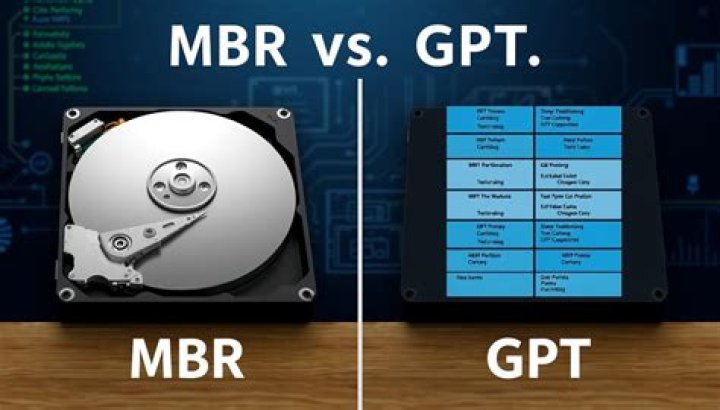
Choosing the right disk partitioning system is crucial for ensuring optimal performance and data integrity on your computer. Whether you're a tech enthusiast, a professional IT administrator, or someone new to the world of computing, understanding the differences between MBR (Master Boot Record) and GPT (GUID Partition Table) is essential. Both systems have their own strengths and limitations, making it important to evaluate your specific needs before making a decision.
In this article, we will explore the intricacies of MBR and GPT, breaking down their features, advantages, and disadvantages. By the end, you'll have a clear understanding of which system suits your requirements best, whether you're managing a personal computer or handling enterprise-level data storage.
As technology continues to evolve, the demand for efficient and reliable disk partitioning systems grows. MBR and GPT are two of the most popular options available today, each offering unique capabilities that cater to different use cases. Let's dive into the details to help you make an informed choice.
Table of Contents
- Introduction to MBR
- Introduction to GPT
- MBR vs GPT: Key Features
- Differences Between MBR and GPT
- Compatibility Issues
- Performance Comparison
- When to Use MBR
- When to Use GPT
- Converting MBR to GPT
- Converting GPT to MBR
- Conclusion
Introduction to MBR
MBR, or Master Boot Record, is one of the oldest disk partitioning systems used in computing. It was introduced in 1983 and has been a standard for decades. MBR is a simple and reliable system that allows users to divide their hard drives into partitions, making it easier to manage data and operating systems.
One of the defining characteristics of MBR is its limitation to four primary partitions per disk. If more partitions are needed, one of these primary partitions can be converted into an extended partition, which can then contain multiple logical partitions. This limitation, however, can pose challenges for users with more complex storage requirements.
Advantages of MBR
- Wide compatibility with older systems
- Simplicity in setup and management
- Efficient for smaller disks and basic partitioning needs
Introduction to GPT
GPT, or GUID Partition Table, is a more modern disk partitioning system that was introduced as part of the UEFI (Unified Extensible Firmware Interface) standard. GPT offers several advantages over MBR, including support for larger disks and more partitions. This makes it an ideal choice for users working with advanced storage configurations.
GPT uses a globally unique identifier (GUID) for each partition, ensuring that partitions can be uniquely identified even across multiple disks. This feature enhances data integrity and reduces the risk of partition conflicts.
Advantages of GPT
- Support for disks larger than 2TB
- Ability to create up to 128 partitions per disk
- Enhanced data protection and reliability
MBR vs GPT: Key Features
When comparing MBR and GPT, it's important to consider their key features to determine which system aligns best with your needs. Below is a breakdown of the main attributes of both systems:
- MBR supports disks up to 2TB in size, while GPT supports disks larger than 2TB.
- MBR allows for a maximum of four primary partitions, whereas GPT supports up to 128 partitions.
- GPT provides better data integrity through the use of GUIDs and checksums, while MBR relies on simpler partition tables.
Differences Between MBR and GPT
The differences between MBR and GPT extend beyond their basic features. These systems differ in terms of compatibility, performance, and ease of use. Understanding these differences can help you make a more informed decision.
Compatibility
MBR is widely supported by older systems and legacy BIOS firmware, making it a safe choice for users with older hardware. GPT, on the other hand, requires UEFI firmware for full functionality, which may limit its compatibility with certain older systems.
Performance
GPT generally offers better performance for large disks and complex partitioning setups. Its ability to handle larger disks and more partitions efficiently makes it a preferred choice for modern computing environments.
Compatibility Issues
One of the primary concerns when choosing between MBR and GPT is compatibility. While MBR is compatible with virtually all systems, GPT may face limitations on older hardware. It's important to verify your system's firmware and operating system support before switching to GPT.
For example, Windows operating systems prior to Windows 8 may not fully support GPT, especially if they rely on legacy BIOS instead of UEFI. Similarly, some Linux distributions may require additional configuration to work seamlessly with GPT partitions.
Performance Comparison
In terms of performance, GPT often outperforms MBR, particularly on larger disks. The ability to create more partitions and manage larger storage spaces efficiently makes GPT a better choice for high-performance computing environments. However, for smaller disks and simpler setups, MBR can still provide adequate performance with minimal overhead.
When to Use MBR
MBR is ideal for users who:
- Have older hardware that relies on legacy BIOS
- Require compatibility with a wide range of systems
- Do not need to work with disks larger than 2TB
For these users, the simplicity and reliability of MBR make it a practical choice.
When to Use GPT
GPT is recommended for users who:
- Work with modern hardware that supports UEFI
- Need to manage large disks or complex partitioning setups
- Prioritize data integrity and reliability
With its advanced features and capabilities, GPT is well-suited for demanding computing environments.
Converting MBR to GPT
Converting an MBR disk to GPT can be a straightforward process if done correctly. However, it's important to back up your data before making any changes to your disk partitioning system. Below are the steps to convert an MBR disk to GPT:
- Backup all important data from the disk.
- Open Disk Management in Windows or use a third-party partitioning tool.
- Select the disk you wish to convert and choose the "Convert to GPT" option.
- Follow the prompts to complete the conversion process.
Considerations
Keep in mind that some systems may require a clean install of the operating system after converting to GPT, especially if they rely on legacy BIOS. Always verify compatibility before proceeding with the conversion.
Converting GPT to MBR
Converting a GPT disk to MBR is also possible, though it may involve more steps depending on your system configuration. Below is a guide to help you through the process:
- Backup all data from the GPT disk.
- Open Disk Management or use a partitioning tool.
- Select the disk and choose the "Convert to MBR" option.
- Follow the prompts to complete the conversion.
Important Notes
Converting from GPT to MBR may result in the loss of some partitions, especially if the disk contains more than four primary partitions. Always ensure that your data is backed up before making any changes to your disk partitioning system.
Conclusion
In conclusion, both MBR and GPT offer valuable solutions for disk partitioning, each with its own set of strengths and limitations. MBR remains a reliable option for users with older hardware and simpler storage needs, while GPT provides advanced capabilities for modern computing environments.
To make the most of your disk partitioning system, consider your specific requirements and the compatibility of your hardware and software. Whether you choose MBR or GPT, understanding their features and differences will help you optimize your storage setup for maximum performance and reliability.
We encourage you to share your thoughts and experiences with MBR and GPT in the comments below. Additionally, feel free to explore our other articles for more insights into computing and technology. Thank you for reading!